
Claude Desktop
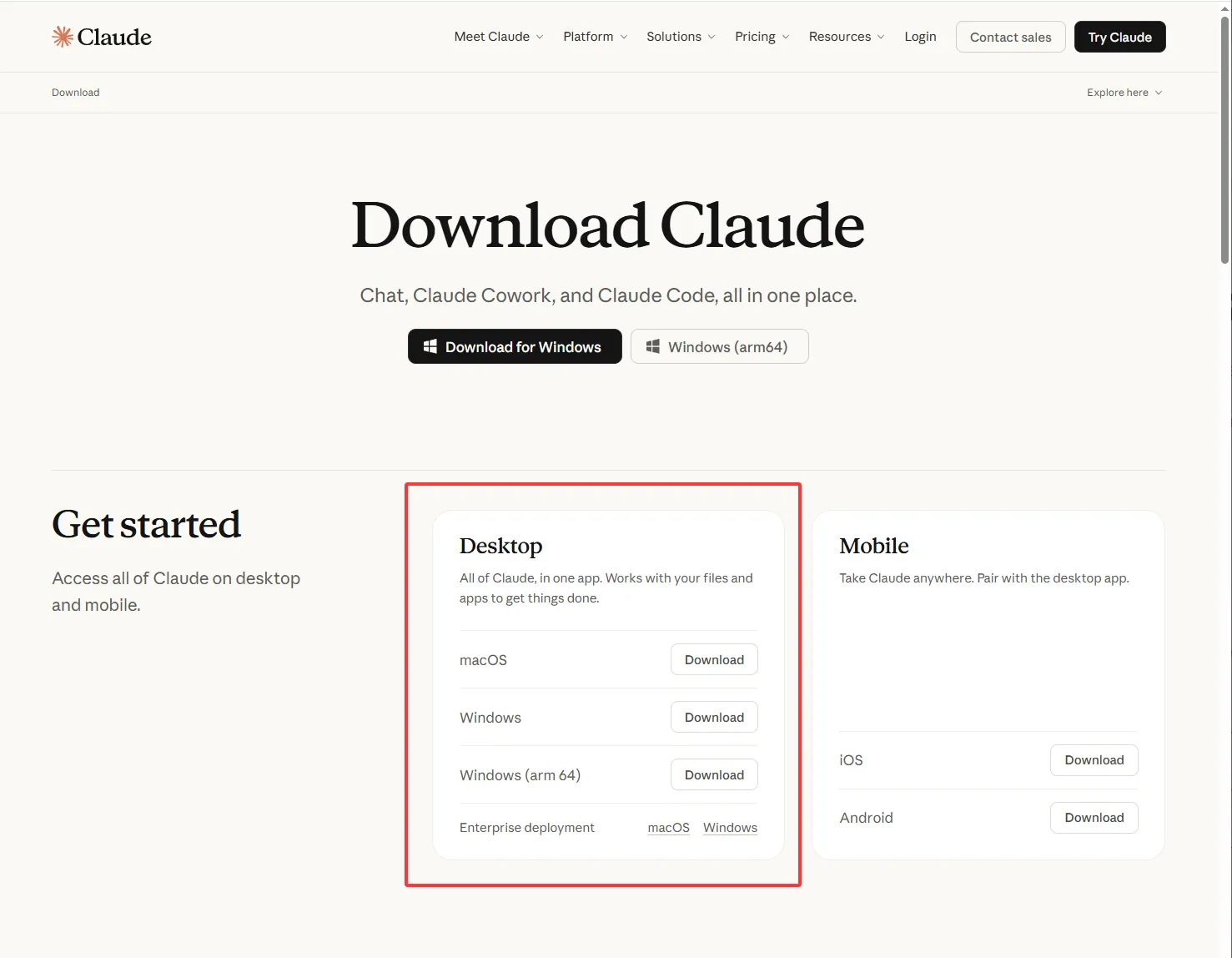
1. Install Claude Desktop
Download Claude Desktop from Anthropic and finish the normal install first.
2. Enable developer mode
Open Claude Desktop. From the menu, open:
Help -> Troubleshooting -> Enable Developer Mode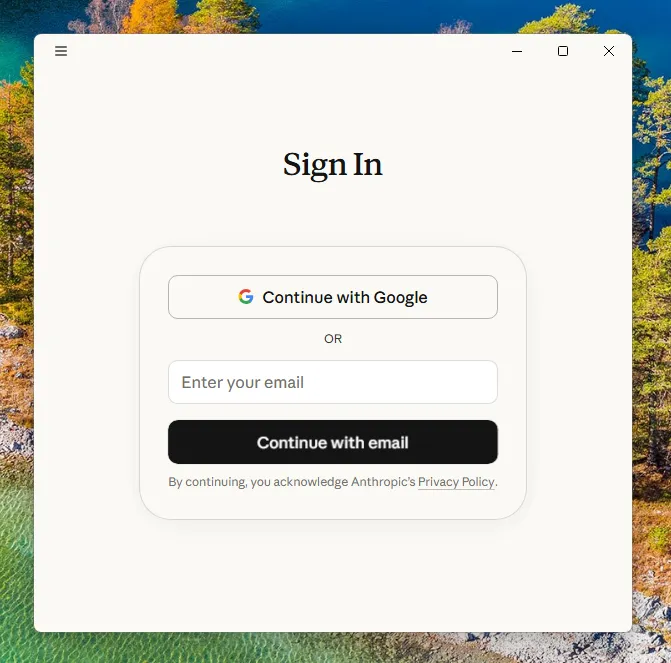
Restart Claude Desktop after enabling developer mode.
3. Configure custom inference
Open:
Developer -> Configure custom inference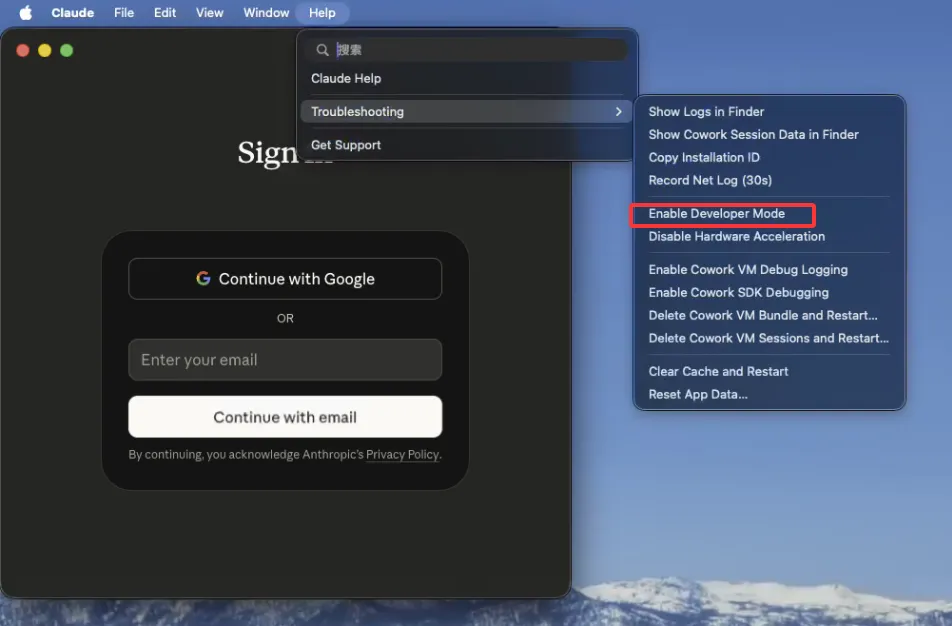
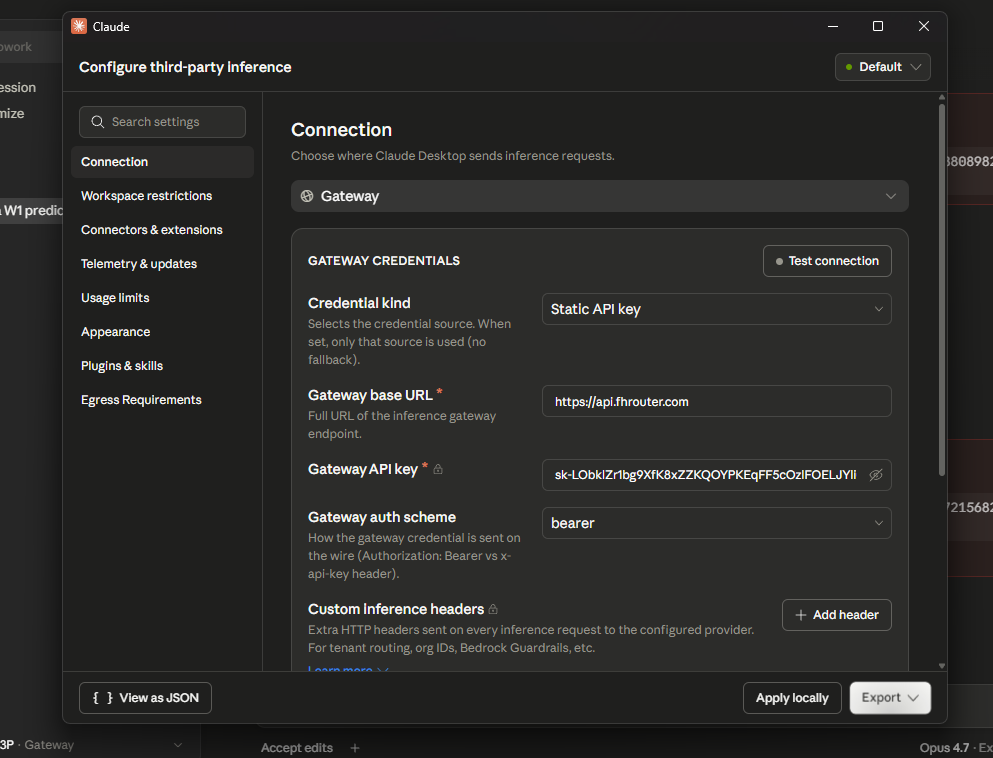
4. Enter the FHRouter URL and token key
Enter:
| Field | Value |
|---|---|
| Gateway base URL | https://api.fhrouter.com |
| Gateway API key | your FHRouter token key |
Keep the auth scheme on bearer.
5. Apply locally and test safely
Click Apply locally, then start with a short prompt:
Reply with one sentence confirming the model is connected.Then check FHRouter usage before sending long documents or large coding tasks.
6. Use the Cowork tab, not Code
Claude Desktop's third-party inference gateway currently works from the Cowork tab.
If a user switches to the Code tab, Claude Desktop may show:
Failed to authenticate. API Error: 401 Invalid tokeneven when the same FHRouter token and endpoint work correctly in Cowork.
Use this setup when testing FHRouter in Claude Desktop:
- open Claude Desktop
- stay on
Cowork - keep the gateway base URL as
https://api.fhrouter.com - keep the same FHRouter token key
- if
Coworkworks butCodefails, treat it as a Claude Desktop client limitation rather than an FHRouter token problem
Common issues
- If the app still shows the normal sign-in flow, confirm developer mode is enabled and restart Claude Desktop.
- If the app rejects the key, re-copy the FHRouter token key from the Token keys page.
- If
Coworkworks butCodefails with401 Invalid token, switch back toCowork. FHRouter accepts the token on the Anthropic endpoint, but Claude Desktop'sCodetab may not use the same third-party inference path correctly. - If the app hangs, retry with a short prompt and check FHRouter usage before sending a larger request.