
6. Configure CLI tools
FHRouter is meant to work with Claude Code, Codex CLI, Gemini CLI, and compatible apps that follow the same request format.
Prerequisites
Before you continue, make sure you already have:
- a working local environment from 5. Check your environment
- an FHRouter account
- wallet balance
- an FHRouter API key
Endpoint overview
You can confirm the host and path mapping inside the FHRouter dashboard.
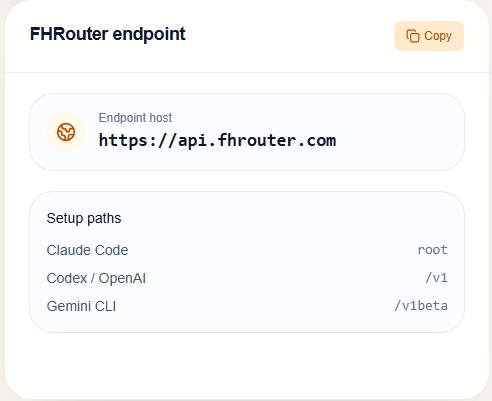
Use the correct path for the client you are configuring:
| Client type | Base URL |
|---|---|
| Claude Code and Anthropic-native tools | https://api.fhrouter.com |
| Codex, OpenAI SDKs, and OpenAI-compatible tools | https://api.fhrouter.com/v1 |
| Gemini CLI and Gemini-native tools | https://api.fhrouter.com/v1beta |
OpenAI-compatible tools need /v1
If the app expects the OpenAI format, do not use the root host by itself. Use:
https://api.fhrouter.com/v1That includes Codex CLI and most OpenAI SDK examples.
Claude-native and Gemini-native clients use different paths
- Claude Code uses
https://api.fhrouter.com - Gemini CLI uses
https://api.fhrouter.com/v1beta
Install the client you want
If you still need to install the CLI packages:
npm i -g @anthropic-ai/claude-code@latest
npm i -g @openai/codex@latest
npm i -g @google/gemini-cli@latest
Continue with the matching guide
Use the guide that matches your client:
Optional: use FH Switch instead of editing config files by hand
If you prefer a desktop manager that can sync one FHRouter provider into Claude Code, Codex, Gemini CLI, OpenCode, and OpenClaw, use: