
OpenClaw
This guide is best suited for Linux, macOS, or remote-server OpenClaw setups.
1. Install OpenClaw
On Linux or macOS, install OpenClaw with:
curl -fsSL https://openclaw.ai/install.sh | bashFollow the installer prompts and wait for the first-run onboarding to appear.
2. Finish the first-run onboarding
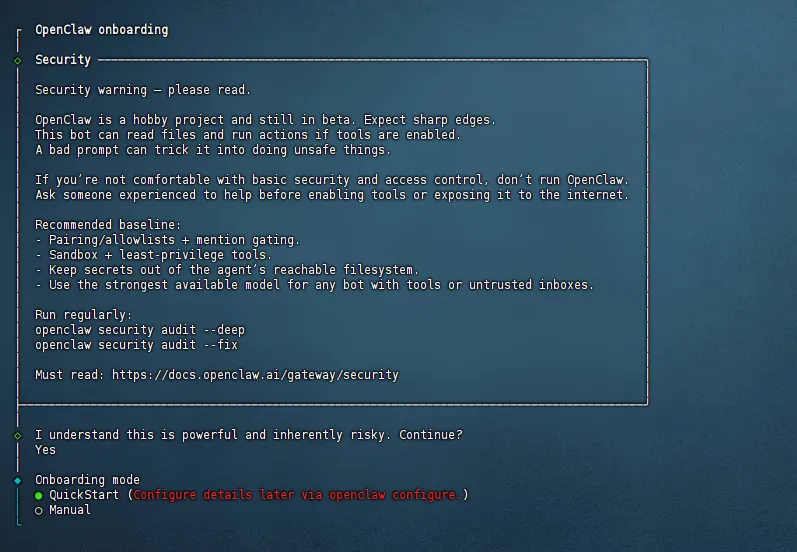
Read the security prompt, confirm it, and choose QuickStart.
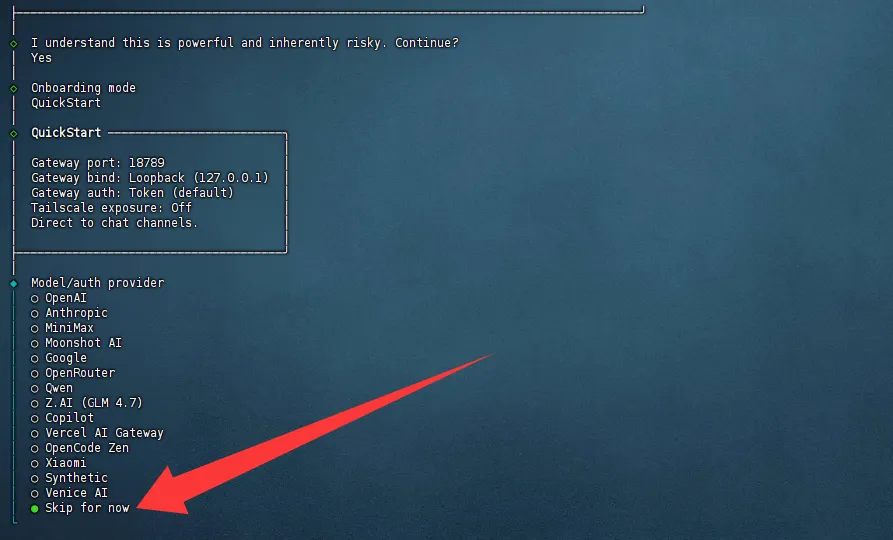
If OpenClaw asks you to pick a built-in provider during onboarding, choose Skip for now.
3. Add FHRouter connection details
Use the adapter that matches the model family:
| Model family | Adapter | Base URL | Example model |
|---|---|---|---|
| Claude | Anthropic | https://api.fhrouter.com | claude-sonnet-4-6 |
| GPT/Codex | OpenAI-compatible | https://api.fhrouter.com/v1 | gpt-5.4-mini |
| Gemini | Gemini | https://api.fhrouter.com/v1beta | gemini-3.1-pro-preview |
Use your FHRouter API key as the credential.
If OpenClaw asks for a model name, copy the exact id from Endpoints and Models.
4. Restart the gateway
After changing provider settings, restart the OpenClaw gateway:
openclaw gateway restart
5. Test in TUI
Run:
openclaw tuiSend one short prompt first. For example:
Reply with one short sentence confirming the connection works.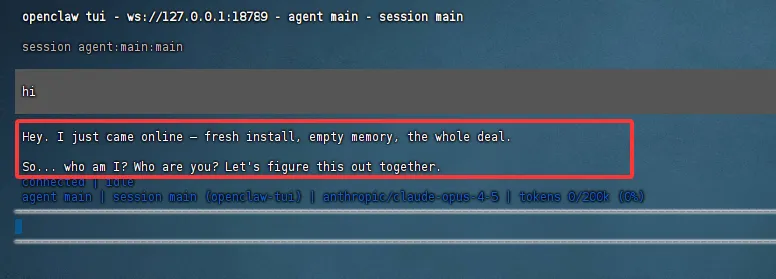
6. Optional browser access
If you expose the OpenClaw dashboard on a remote server, put it behind your own reverse proxy and TLS. Do not leave a raw management endpoint public without protection.
Common issues
- If OpenClaw cannot find the model, copy the exact model id again from FHRouter.
- If the adapter expects OpenAI-compatible traffic, include
/v1. - If the adapter expects Claude or Anthropic traffic, use the root host without
/v1. - If the adapter expects Gemini-native traffic, use
/v1beta. - After any provider or model change, restart the gateway before testing again.