
Gemini Setup
1. Find the Gemini configuration folder
First, open your terminal, whether you are on Windows or macOS.
Then run the command for your system to open the Gemini configuration folder.
Windows
start "" "%USERPROFILE%\.gemini"macOS
open "$HOME/.gemini"Linux or WSL
mkdir -p "$HOME/.gemini"
cd "$HOME/.gemini"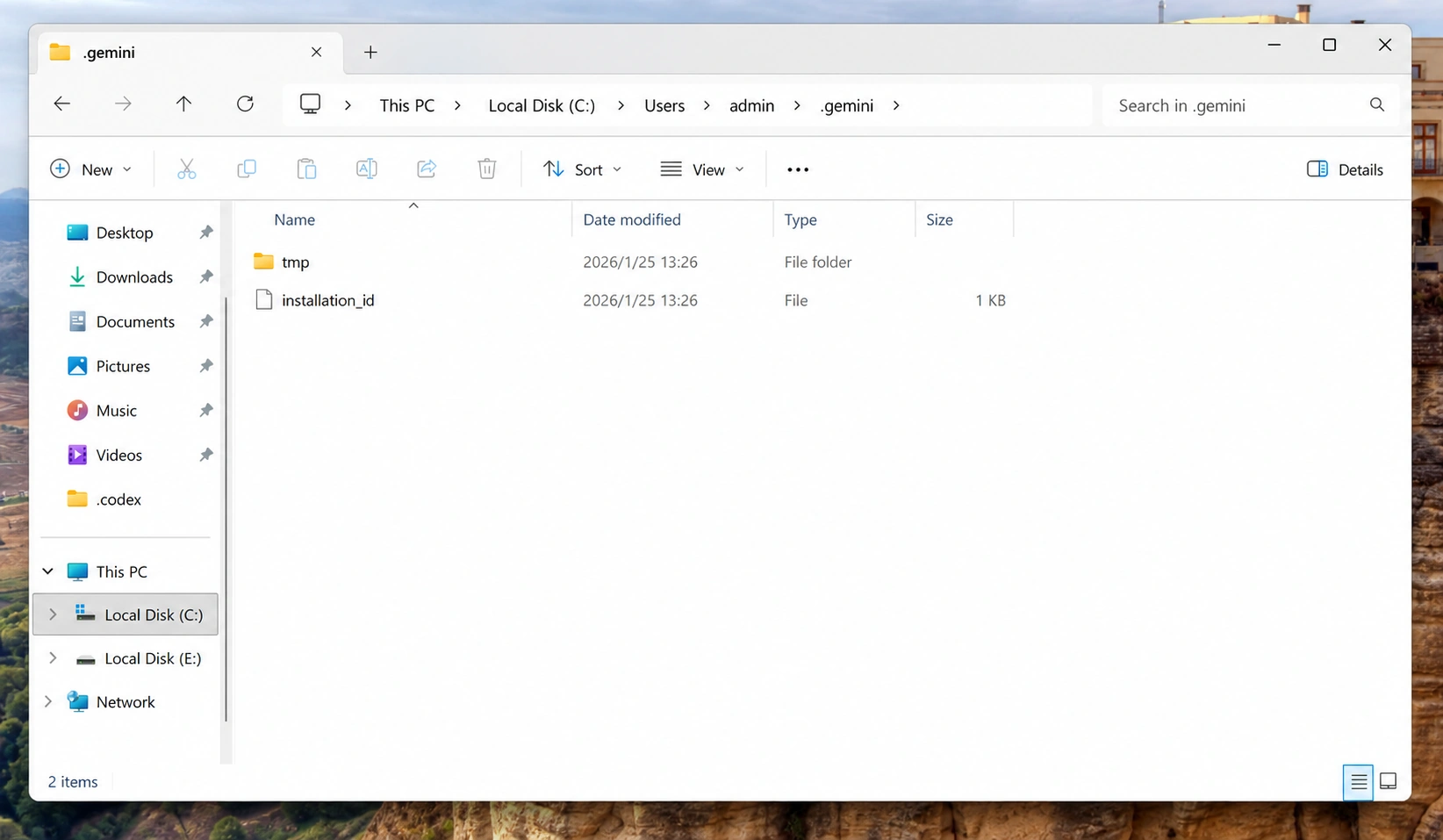
2. Manually create a .env file and add the following content
GOOGLE_GEMINI_BASE_URL=https://api.fhrouter.com/v1beta
GEMINI_API_KEY=
GEMINI_MODEL=gemini-3.1-pro-preview
3. Enter the ApiKey generated in the dashboard in GEMINI_API_KEY, then save the file
Use the FHRouter Gemini endpoint:
https://api.fhrouter.com/v1beta4. Run gemini in the terminal and start a conversation to check whether setup succeeded
If you want to pin the model explicitly, start it with:
gemini -m gemini-3.1-pro-preview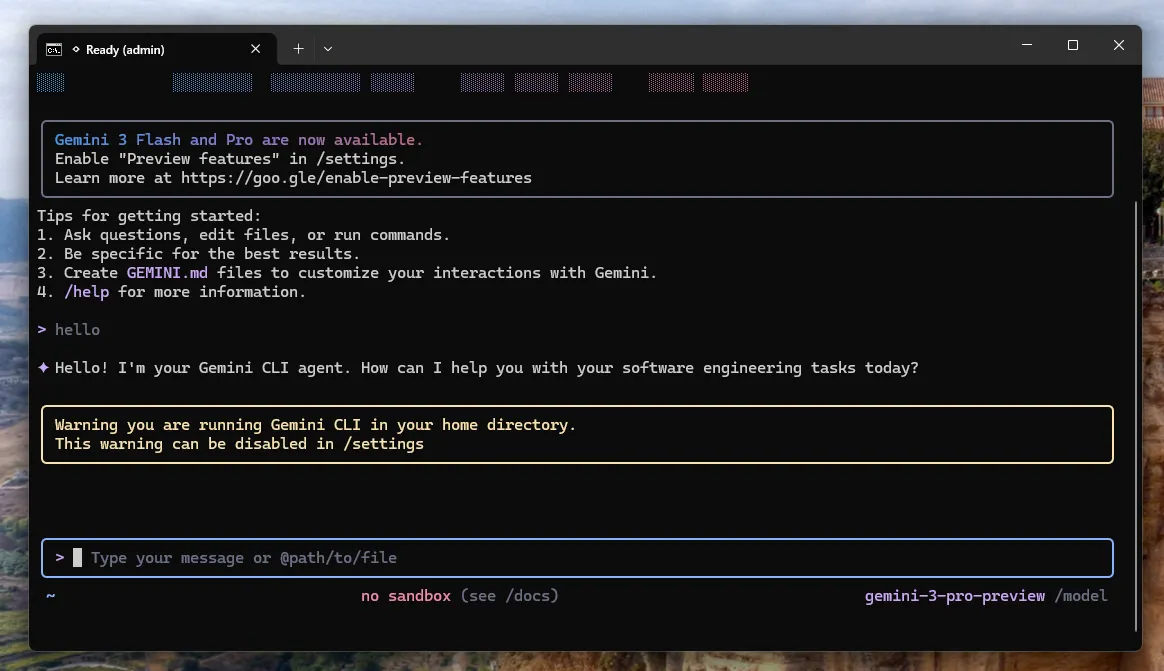
5. Use the same values in other Gemini-compatible apps
If a Gemini-compatible tool asks for manual connection details, use:
| Field | Value |
|---|---|
| API key | your FHRouter token key |
| Endpoint or base URL | https://api.fhrouter.com/v1beta |
| Model | gemini-3.1-pro-preview |
6. If it does not work
- Check that the endpoint is
https://api.fhrouter.com/v1beta. - Check that the model name is typed exactly.
- Check that old local environment variables are not overriding your new values.
- Start with a short test prompt before retrying a larger task.