OpenCode
Step-by-Step OpenCode Setup
1. Create an opencode.json file with the three main providers
Use separate entries for Gemini, Claude, and GPT so you can switch models cleanly inside OpenCode.

2. Open opencode.json, configure the corresponding API Key in the Gemini, Claude, and GPT sections, then save the file
Use the matching endpoint for each model family:
- Gemini:
https://api.fhrouter.com/v1beta - Claude:
https://api.fhrouter.com - GPT:
https://api.fhrouter.com/v1
Check the ApiKey Management guide and generate a token key for the correct client. Use the same FHRouter key unless you want separate keys for each tool.
3. Find the OpenCode configuration folder
If this is your first setup, install OpenCode in the terminal and run it once:
npm i -g opencode-aiRun OpenCode:
opencodeFirst, open your terminal, whether you are on Windows or macOS.
Then run the command for your system to open the OpenCode configuration folder.
Windows
start "" "%USERPROFILE%\.config\opencode"macOS
open "$HOME/.config/opencode"Linux or WSL
mkdir -p "$HOME/.config/opencode"
cd "$HOME/.config/opencode"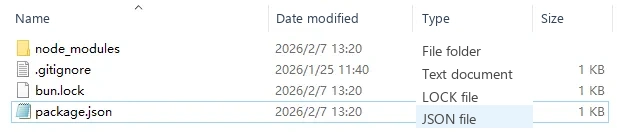
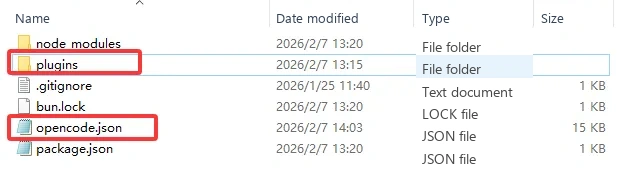
4. Copy the modified opencode.json file into the OpenCode configuration folder
If your setup uses plugins or shared configs, copy those into the same folder as well.
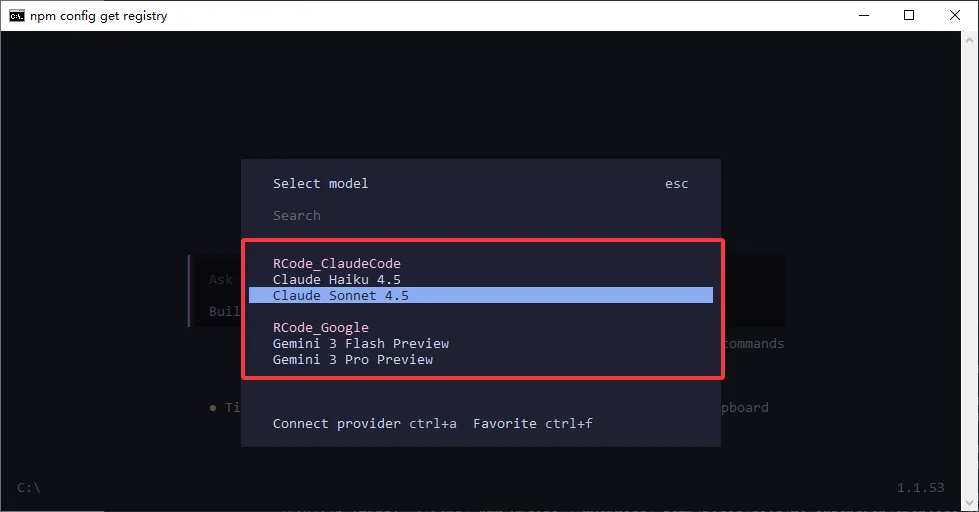
5. Run opencode in the terminal, then use the /models command to check whether setup succeeded